
Inviting or adding trainees (via email, via form or via Excel CSV spreadsheet)
Removing, deleting and editing trainees
You can
- Edit a trainee (name, email, password, groups)
- Remove a trainee from a course (this is a soft delete - they'll still be in your system, but without access to that course)
- Permanently delete them once they've been deleted from all courses (this removes all trace of them)
There are two options:
- View all trainees on the Trainees and courses page
- Enrolled trainees in the Options dropdown menu.

| View all trainees (shows every trainee with a current course licence) | Enrolled trainees (shows trainees in that course) |
| Email or username (if email doesn't exist) Name Course % complete Access ends Groups Options (View course progress, view module results, view training records, edit trainee profile, extend [course licence], validate/revalidate, operator's certificate [some courses], results, certificate, ID card [some courses], remove) | Email or username (if email doesn't exist) Name % complete Access ends Groups Validation completed Options (View course progress, view module results, view training records, edit trainee profile, extend [course licence], validate/revalidate, operator's certificate [some courses], results, certificate, ID card [some courses], remove) |
Edit buttons explained
Depending on the course and what settings you have changed, you may not see all these buttons.
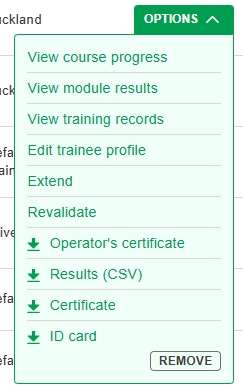
Click on Options to drop down the menu
- View course progress: goes to course progress for that trainee
- View module results: goes to the results of each attempt at a module
- View training records: goes to that trainee's training records for all courses
- Edit trainee profile: enables editing of the trainee's name, password and groups (note that you can edit groups en masse by selecting multiple trainees) - see below
- Extend: adds a course licence to the cart for this trainee which extends the expiry date by the same amount as the original course access (i.e. 6 months or 12 months, depending on the course)
- Validate/revalidate: opens the validation option for courses that require verification of a practical assessment
- Operator's certificate: downloads the operator's certificate (selected courses)
- Results (CSV): download the trainee's training results
- Certificate: generate a certificate of their course theory results (may be grey if the course isn't completed)
- ID card: generates an ID card (if relevant)
- Remove: removes the trainee's access to that course immediately. You can still view their results (assuming they have started the course)
- Send reminder: if a trainee hasn't finished, click Send reminder to send an email to prompt them to finish. Note that this only works if their profile contains an email. If they only have a username, you'll need to tell them in person.
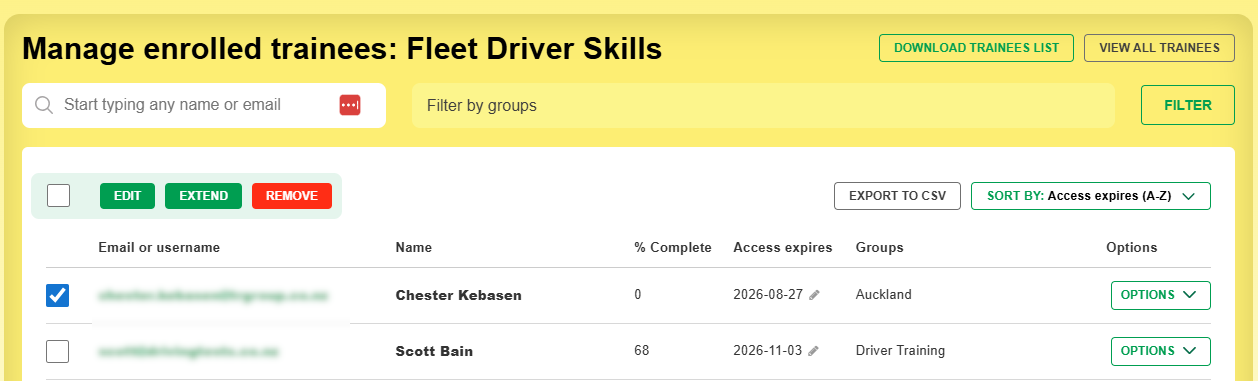
Note that you can edit or remove multiple trainees by choosing multiple checkboxes. In the enrolled trainees view, you can also extend the course (see below).
IMPORTANT
In View all trainees, each trainee will have one record for each of the courses they are enrolled in. If you edit the trainee's groups, this will be reflected in each of the records. However, if you click Remove, this will only remove the trainee from the specific course (i.e. remove their access to it), not all courses they are enrolled in.
Removing trainees who haven't started a course
See more here. If you remove a trainee before they start, it will give you the course licence back.
Permanently deleting trainees
Only the main account holder can do this, not managers.
- Trainees must be removed from all courses that they have access to.
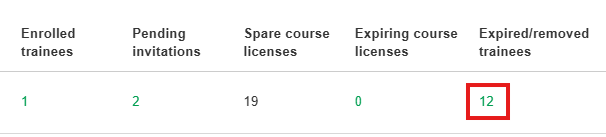
- Visit the expired/removed trainees page by clicking on the number in the column, or from Options > Expired/removed trainees.
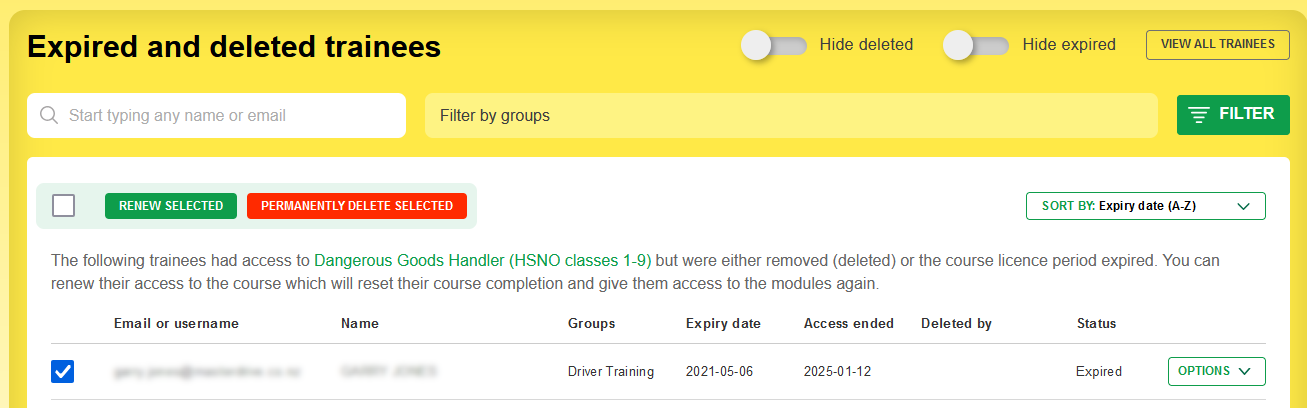
- Select the trainees you want to permanently delete and click the big red button!
Remove, or extend course access for trainees
In the image below, the company has 6 fire extinguisher course licences expiring in the next 30 days.
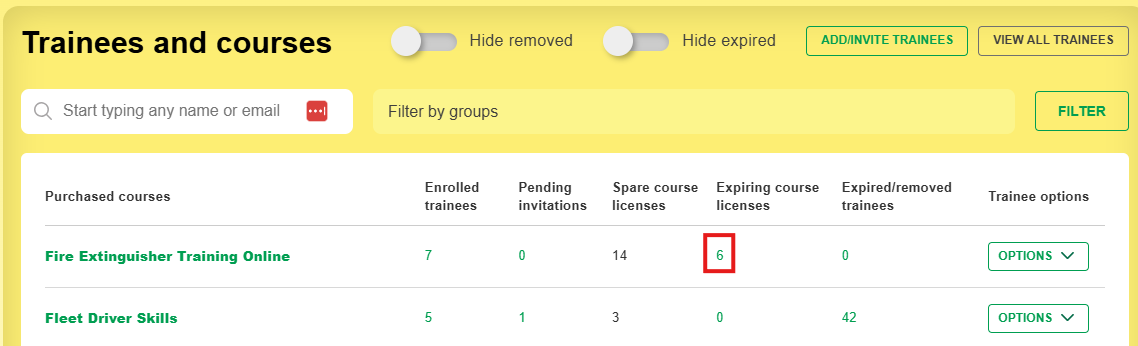
Click on the number 6 to see a list of the trainees.
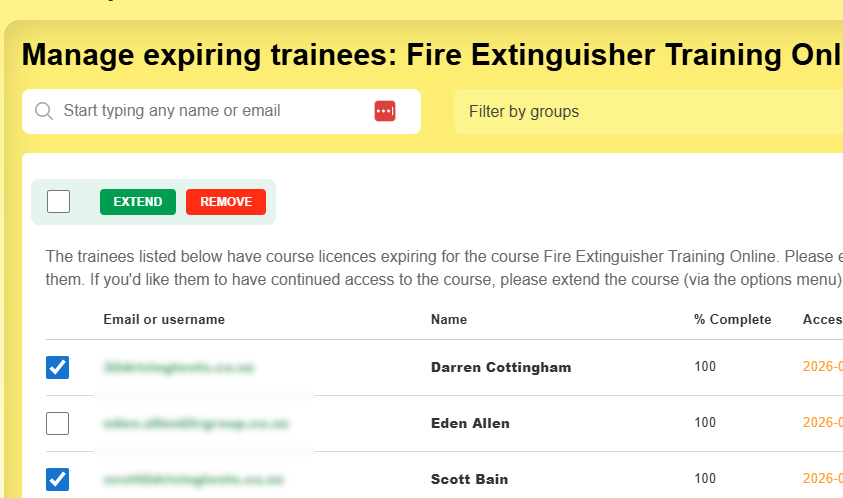
The trainees' access to the course will expire if you don't extend the course licence.
Select the trainees you want to extend, then click Extend. This will add course licences to the cart for those trainees.
Removing a trainee removes their access to that course immediately.
Buy more course licences
- Options > Buy more licences
- Options > Add via username (this opens a window where you can choose how many courses to add to the cart)
- Options > Add existing trainee (as above)
- The Courses page