If you want to add multiple training records, view the bulk upload help file.
Go to Manage > Training records.
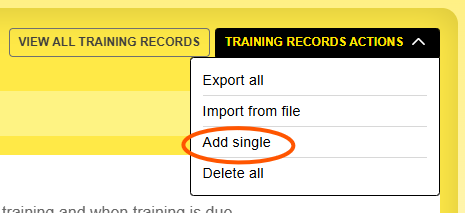
From the Training Records Actions menu, choose Add single.
Existing trainees
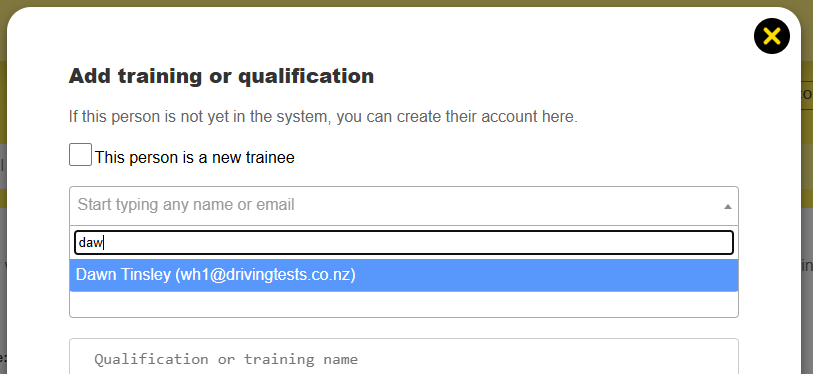
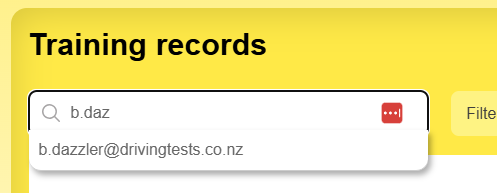
If the person already exists, start typing their name into the name field, and it will autosuggest matching trainees:
Then fill out the remaining fields and save it.
- Qualification or training type: choose one or more of the options (operator's certificate, training or assessment, licence class, licence endorsement, unit standard or other. You must have at least one selected
- Qualification or training name: write the name of the qualification, e.g. Forklift Operator's Certificate
- Certificate number: this will be automatically written if it's a course on DT. If you're adding separate training, you can put what you like in here.
- Date achieved: the date the trainee passed the qualification
- Expiry date: Optional field for the expiry date of the qualification. We will send reminders 90 and 30 days before it expires and the day after.
- Hours taken: Optional field to keep a track of how many hours the training session was. This is useful if there's a minimum number of hours on the way to another qualification, or some mandated internal requirements
- Unit standards: Optional field for you to enter any unit standard numbers
- Assessor name: Optional field to note the trainer(s) who conducted the assessment
- Assessor email: Optional field to note the trainer's email
- Add files: You can add multiple files such as a scan of a practical assessment checklist, photographic evidence of completion, etc. File types are restricted to .jpg, .png, .pdf, .gif or .txt. The maximum file size is 10Mb.
New trainees
If this is a new trainee who doesn't yet have access to any DT courses, there are two steps:
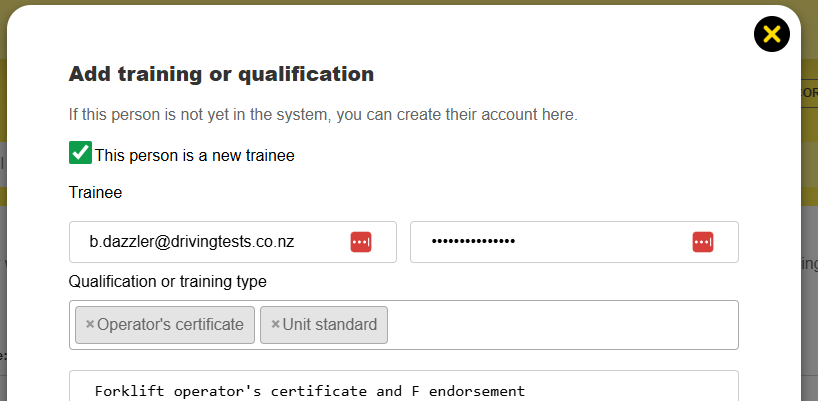
1) Click This person is a new trainee, then fill out the email and password, and all the details for the training record. This creates the training record, but it doesn't give them a name or a group.
2) In the training records search box, search for the trainee you just added
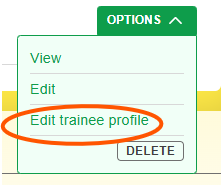
Then click on Options > Edit trainee profile
You can then add their name and groups
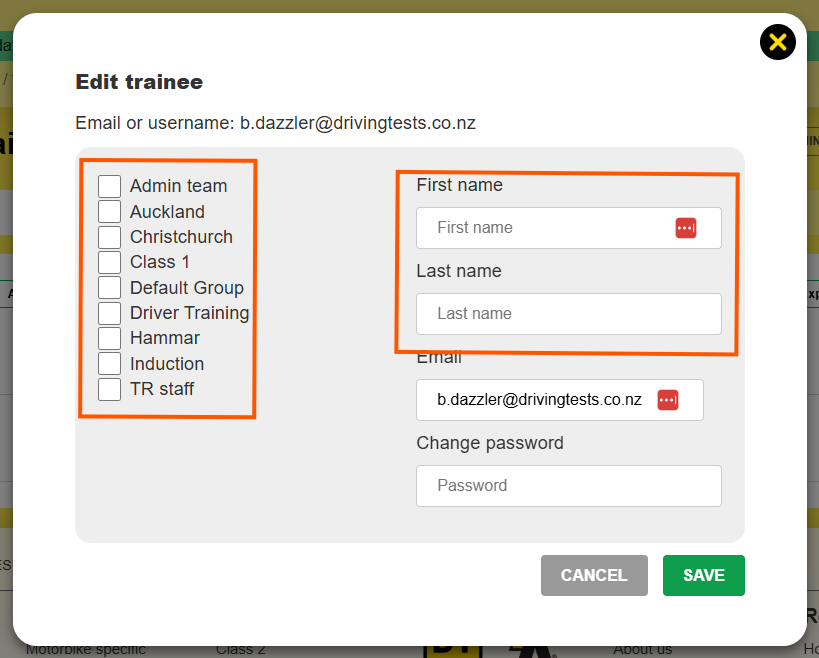
Note, that creating a profile for them does not email them their username or password. You will need to do this separately if you want to notify them.
Deleting a training record
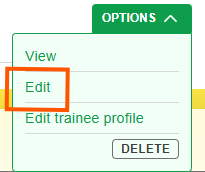
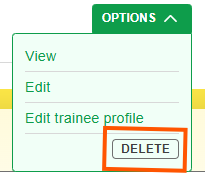
Click the Delete button in the Options menu. Acknowledge the warning and continue if you are OK with it.
Editing a training record
Click the Edit button in the Options menu, change the fields as required and click Save.